Station Status Portal
The station portal gives you a live view of your MOAS station in a web browser. See relay states, radio frequencies, selected antennas, rotator bearings and connected clients.
The portal is read only. Viewing status or opening details does not switch relays, select antennas or move rotators. Your normal clients remain in control.
Open the Portal
Section titled “Open the Portal”Add --web to your usual server startup command:
moas-server-cli.exe run "station.moas" --web --web-port 8080Replace station.moas with your configuration file, then open the Station portal
link printed in the terminal. The default port is 8080; choose another if it is already
in use. The portal is optional and is not enabled during ordinary startup without web options.
Station View
Section titled “Station View”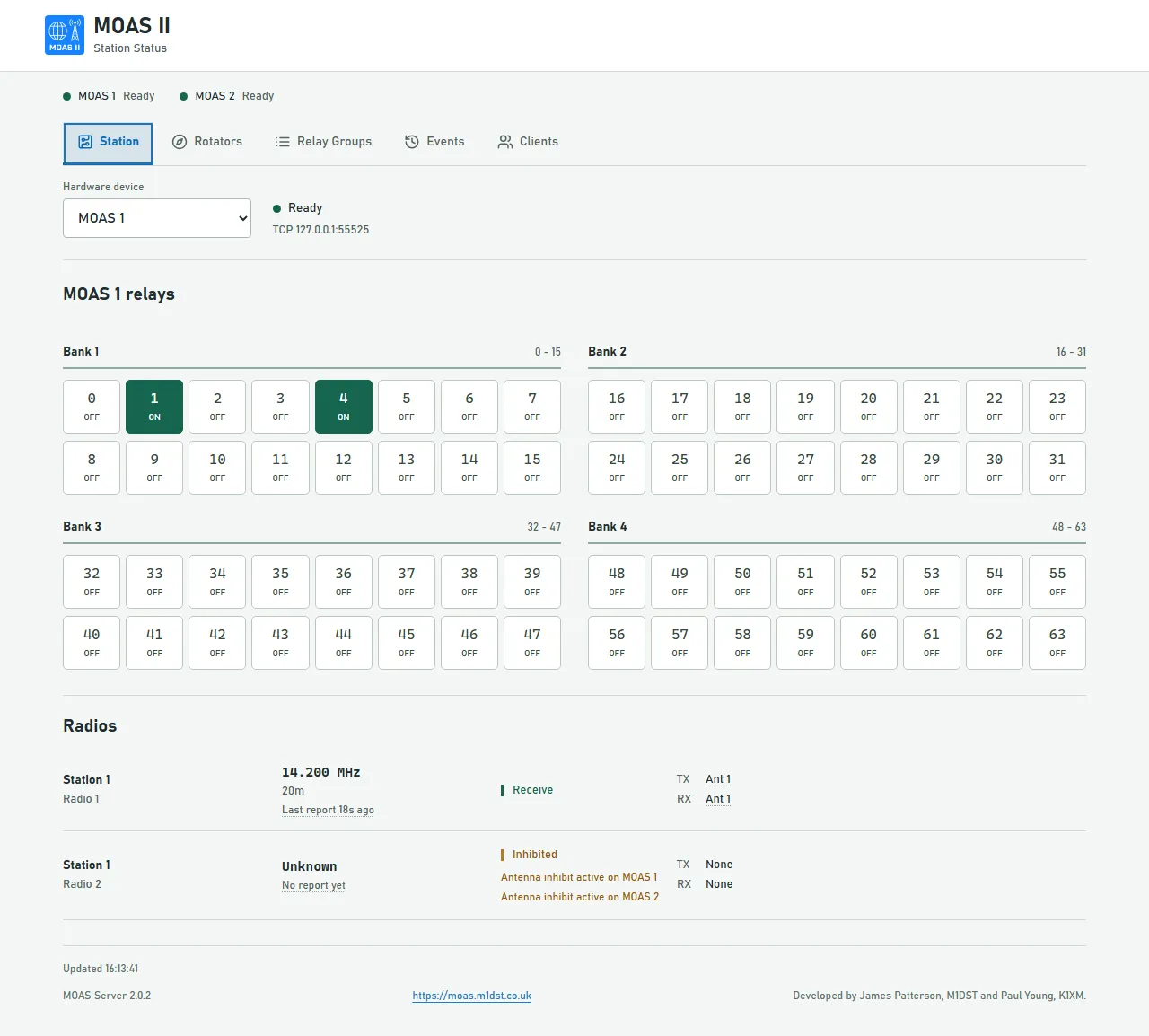
The Station tab brings relays and radios together. Hardware connection status stays visible as you move between tabs.
Choose a Hardware device to see its 64 relays, arranged in four banks. Each tile shows On, Off or Unknown. Relay numbers follow your configuration: device 1 uses 0-63, device 2 uses 100-163, and so on.
Below the relays, each radio shows its frequency, band, operating state and selected TX/RX antennas. Hover, tap or keyboard-focus an antenna name to highlight its related relays on the selected device.
Last report tells you how long ago the server received a frequency report. A longer age does not necessarily mean a problem: some clients send reports only when the frequency changes. No report yet means none has been received since monitoring started.
If a radio is Inhibited, any available context appears below its state, such as an antenna inhibit or another radio transmitting. Cause not reported means the server cannot provide an explanation; it does not guess the reason.
Other Views
Section titled “Other Views”- Rotators shows stored bearings and compass headings. A controller-reported bearing is its last stored reading, not confirmation that it is connected or moving.
- Relay Groups shows whether configured groups are Selected, Available or Unavailable. This reflects server selection, not equipment feedback.
- Clients shows connected client names, IP addresses and their radio assignments.
Rotator and relay-group tabs appear only when there are entries to show.
Recent Events
Section titled “Recent Events”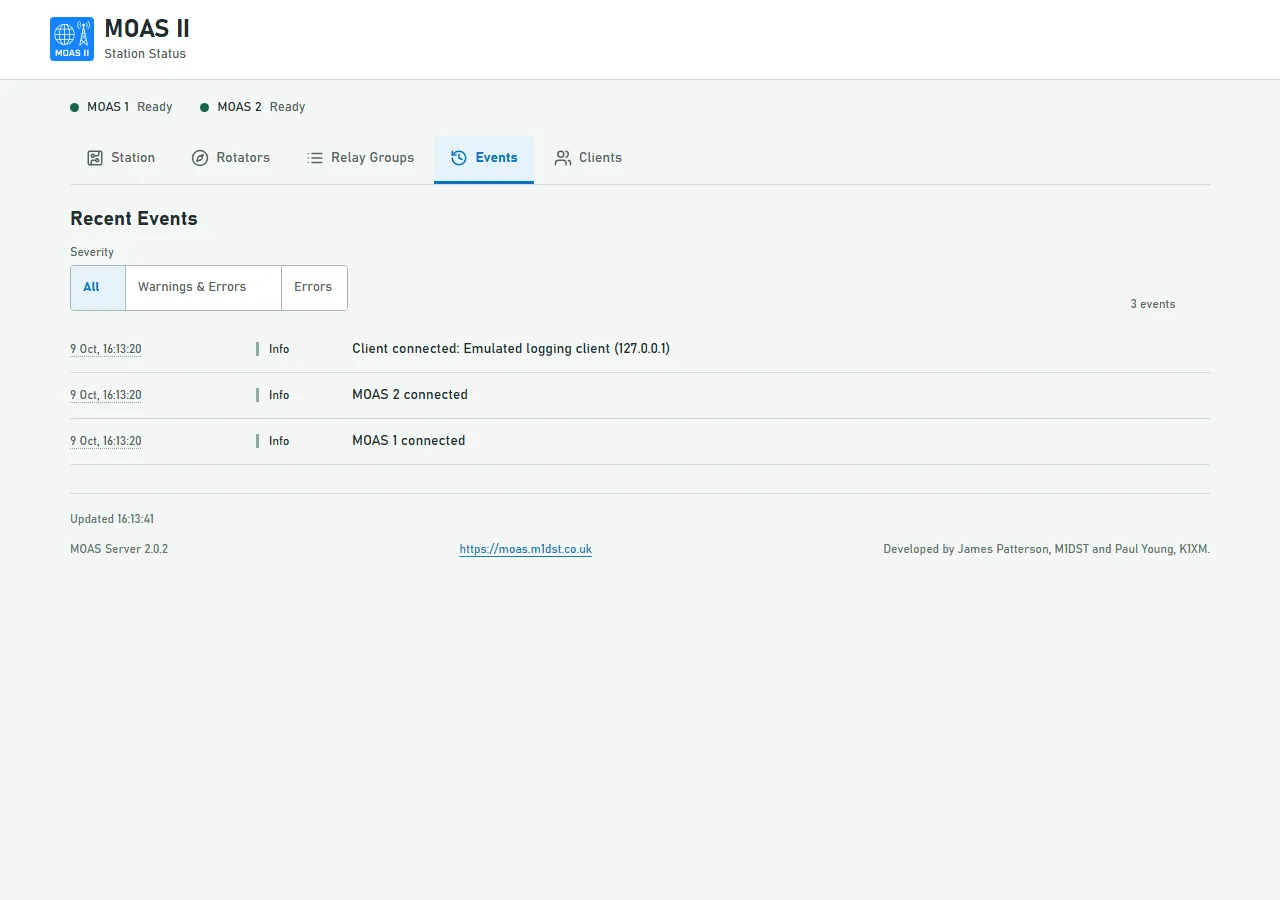
The Events tab shows recent client connections, disconnections and hardware connection changes or faults. Client entries include their name and IP address when available. The newest events appear first, with local timestamps and an Info, Warning or Error label.
Choose Warnings & Errors or Errors to focus on problems, or All to see every retained event. The portal keeps the newest 64 events; this is a short history, not the complete server log, and it clears when the server restarts.
Additional Details
Section titled “Additional Details”Hover or keyboard-focus relay tiles and other details to open a tooltip containing more detail. On a touch screen, tap to open it, then tap again or elsewhere to close it. Escape also closes tooltips.
Use a Phone or Another Computer
Section titled “Use a Phone or Another Computer”Add --allow-lan to make the portal accessible on your local network:
moas-server-cli.exe run "station.moas" --web --web-port 8080 --allow-lanOn the other device, replace 127.0.0.1 in the portal address with the server
computer’s LAN IP, for example http://192.168.1.20:8080. You may need to allow
the web port through the server computer’s firewall. No access token is required.

If Updates Stop
Section titled “If Updates Stop”Unavailable or stale information is shown as Unknown or Unavailable, rather than continuing to look live. Recent events remain visible if the connection is lost, but new entries will not arrive until live updates resume.
Closing the browser does not change station operation. For manual relay control, use the separate Relay Test Console, which is not a normal-operation mode.