Rotator Direction
The MOAS Client has several ways to display and control the direction of rotators and antennas. The direction can be displayed as a number or a pointer on a compass. It can be set by clicking on the compass, by typing a number, or by pressing a button.
There is one other way to change the direction of an antenna. If the logging program which is interfaced to the MOAS Client commands an antenna direction change, the antenna or antennas that have been selected for the radio with focus will be rotated to that direction.
This is the Rotator Direction display, which is what is shown if a rotator display is configured but none of the configuration options are changed from the defaults:
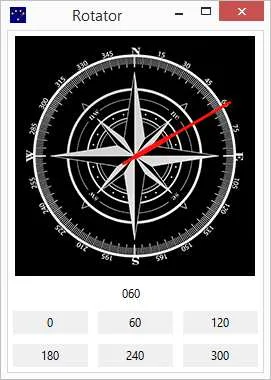
It shows direction both on a compass and numerically. Direction can be changed by clicking on the compass or by clicking on one of the buttons below.
The size of the compass can be changed. It can also be replaced by an image such as a map.
The digital number size, font, and colour can be changed. It can also be set to accept input.
The button size, colour, style, and text font can all be changed.
Title Display
Section titled “Title Display”The rotator name and direction can be added to the title. This display window just has the title. It cannot change the direction but it shows the information in a small space.

Rotator Selection Buttons
Section titled “Rotator Selection Buttons”A window can be configured with buttons to select which rotator to turn or display. This window can display or turn any rotator in the station:
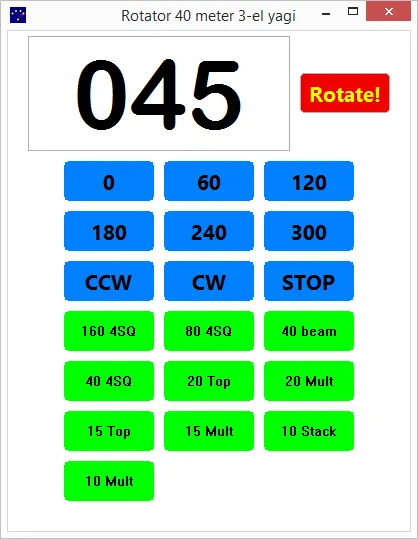
Typing a number into the box and pressing the Rotate! button or pressing the Enter key will cause the rotator to turn to the specified direction.
The text in the Rotate! button is configurable. The CCW, CW, and STOP buttons are optional and their text is also configurable. They are only supported if the rotator supports a stop command.
Multiple Rotators on a Compass
Section titled “Multiple Rotators on a Compass”A compass can show more than one rotator:
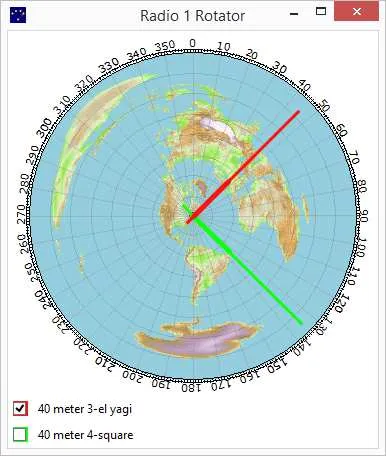
Clicking on the compass will rotate the Yagi but will not change the 4-square because the Yagi’s box is checked and the 4-square’s is not.
Beamwidth Display
Section titled “Beamwidth Display”If a rotator is being shown because it turns an antenna then additional information is known and can be displayed. The antenna beamwidth, number of lobes, and offset from the rotator can all be shown.
This window shows the 3 dB beamwidth of the 4-square:
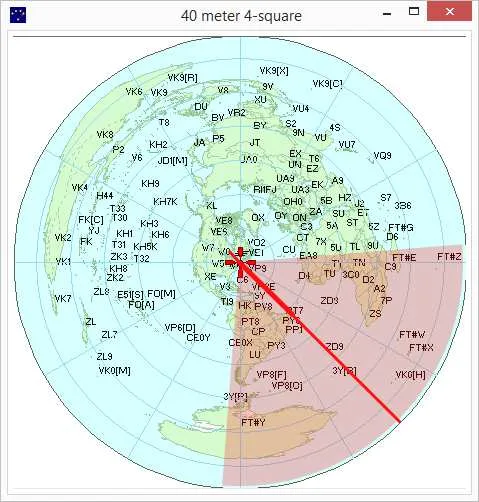
Since the 4-square is electrically rotatable the direction can be changed by turning the rotator in a Rotator Direction window or by selecting one of the four antennas in an Antenna Display or Antenna Selector window.
Direction Buttons
Section titled “Direction Buttons”Direction buttons can be placed at the left, right, top, or bottom of the compass:
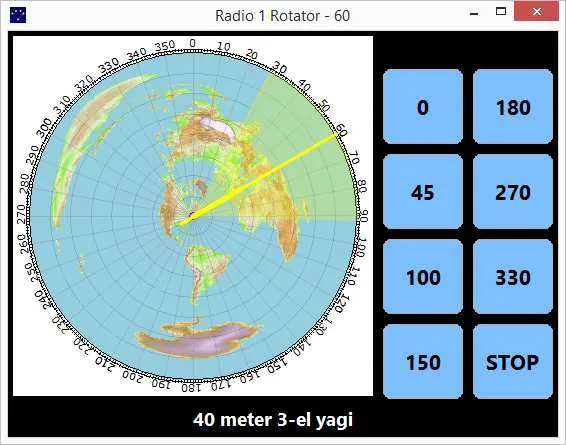
The button presets are configurable. Any direction can be placed on a preset.
Note that the pointer contains a heavier line segment. This is the direction of the rotator. If the antenna is known to have an offset from the rotator (for example if it is mounted at right angles to other antennas on the rotator) the heavy line will not point in the same direction as the longer line.
Fixed Antennas
Section titled “Fixed Antennas”If no rotatable antennas fit the selection then a fixed antenna can optionally be shown. This is a fixed dipole which is a bidirectional antenna.
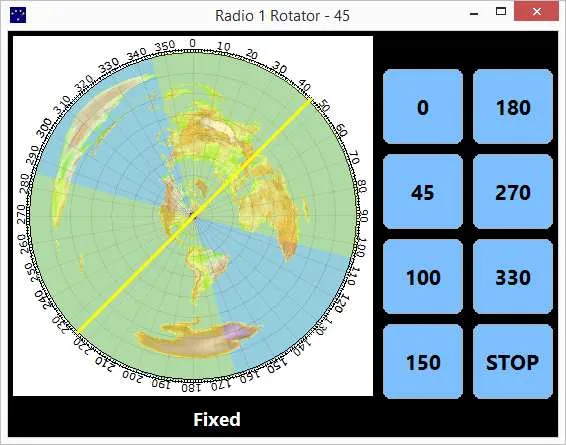
No short heavier line is shown because there is no rotator for this fixed antenna.
The Rotator Direction window can be run on any PC that can connect to the server. The only restriction is that if it is not on the same PC as the logging program it cannot be set to display the antennas for the radio with logging focus.