Client Window
When the MOAS Client starts up it displays the client window.
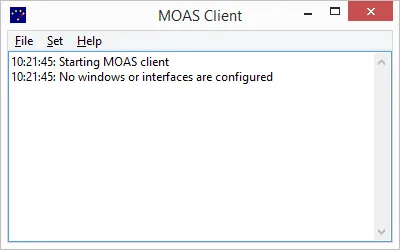
There are three menus plus an enhanced system menu and the traditional minimise, iconise, and close buttons. There is also a logging area which shows operational information and errors.
File Menu
Section titled “File Menu”The file menu contains the file-oriented and configuration items.
Configure
Section titled “Configure”Opens a dialog for configuring logging program interfaces, antenna display and selection, and rotators.
Closes and reopens network and logging program connections. Also closes and recreates all antenna display, selection, and rotator windows. If something isn’t working right this is the quick thing to try.
Loads the configuration from a file. This replaces the current configuration.
Saves the current configuration to a file.
Exits the MOAS Client.
Set Menu
Section titled “Set Menu”The Set menu sets values for the server.
Frequency
Section titled “Frequency”Displays the Manual Entry window. This is intended for testing and situations where a logging program is not running or is not communicating with the radio.
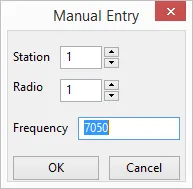
If this window is used while a logging program is communicating with the MOAS Client then the frequency may be changed by the logging program at any time — the interaction between this command and the logging program interface is not specified.
Freeze Windows
Section titled “Freeze Windows”When this option is selected all Antenna Display, Antenna Selector, and Rotator Direction windows cannot be moved or resized.
No Mouse Focus
Section titled “No Mouse Focus”When this option is selected all Antenna Display and Antenna Selector windows will not take keyboard focus if the window which has keyboard focus is not part of the MOAS Client. Rotator Direction windows will not take keyboard focus unless they are configured for keyboard direction input.
Help Menu
Section titled “Help Menu”The help menu provides helpful information. The best source of help is this manual.
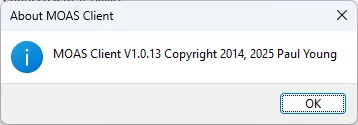
Shows the current version of the MOAS Client.
System Menu
Section titled “System Menu”The system menu is accessed by clicking on the icon at the upper left of the window. It is available on the client window, antenna display windows, antenna selector windows, and rotator direction windows.
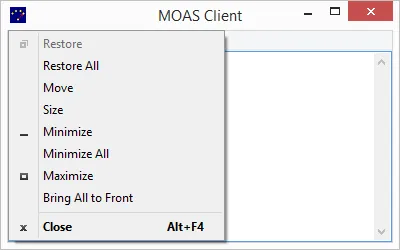
There are three additional entries in this menu. They will affect all antenna display, antenna selector, and rotator windows. They do not affect the client window.
Restore All
Section titled “Restore All”Restores all minimised antenna display, antenna selector, and rotator direction windows.
Minimize All
Section titled “Minimize All”Minimises all antenna display, antenna selector, and rotator direction windows.
Bring All to Front
Section titled “Bring All to Front”Brings all antenna display, antenna selector, and rotator direction windows to the front.